Face Shape Key Preset Feature - Quick Start
With M. Avatar Setting’s blend shape preset feature, you can save your favorite blend shapes and easily recall them anytime.
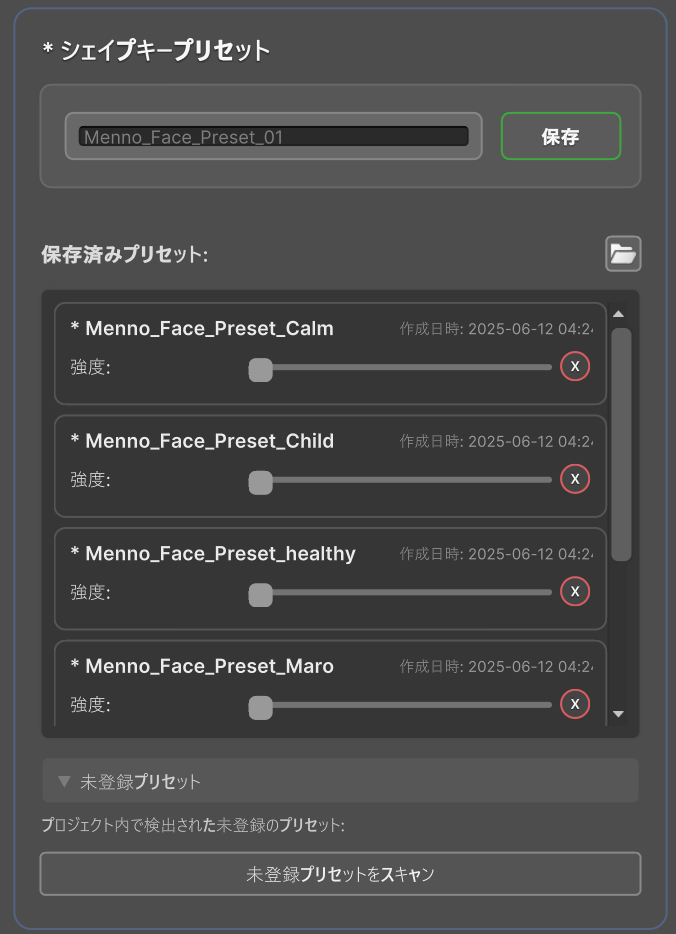
How to Save Presets
1. Adjust Blend Shapes
First, create your favorite blend shapes in the face settings.
2. Enter Preset Name
In the “Shape Key Preset” section, enter a preset name.
- By default, a name like
Menno_Face_Preset_01is automatically entered - You can change it to a more descriptive name (e.g., “Child”, “Adult”, “Baby Face”, etc.)
3. Click Save Button
Click the “Save” button to save the current blend shape settings as a preset.
How to Use Presets
1. Select from Saved Presets
Your saved presets are displayed in the “Saved Presets” section.
2. Apply with Intensity Slider
Each preset has an “Intensity” slider:
- 0%: Do not apply the preset
- 50%: Apply the preset at half intensity
- 100%: Apply the preset completely
3. Real-time Preview
As you move the slider, the blend shape changes in real-time.
Convenient Features
Blending Presets
You can apply multiple presets simultaneously to create new blend shapes.
- Example: Apply “Child” at 50% and “Adult” at 30% to set your desired blend shape.
Accessing the Preset Folder
Click the 📁 button next to “Saved Presets:” to open the folder where presets are saved in the project window.
Delete Presets
Click the “X” button on each preset to delete it after confirmation.
Notes
- Presets are saved per project
- Presets are retained even after restarting Unity
- Preset files are saved in
Assets/emudotto/Menno/Resources/Face_Presets